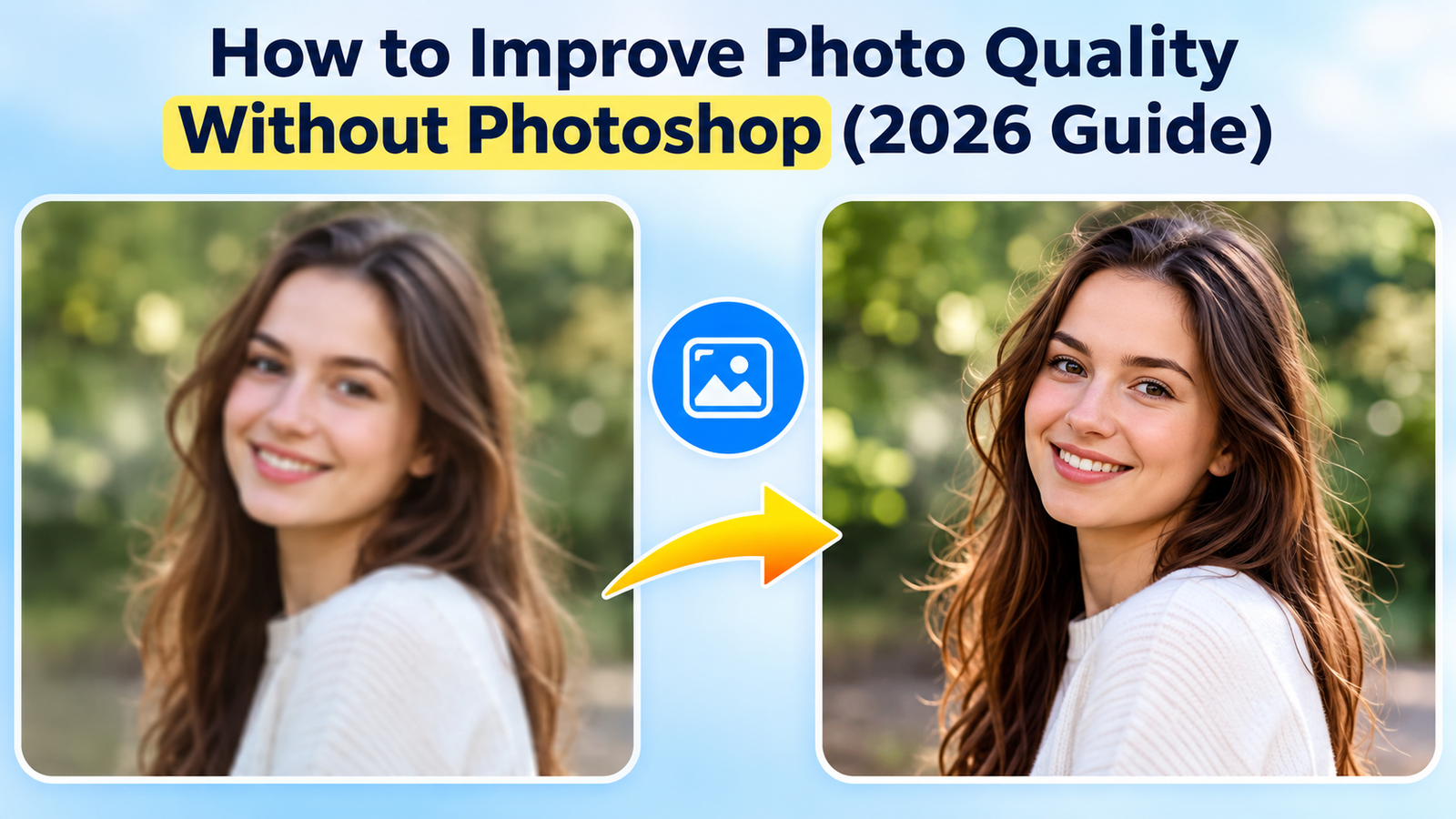
I’ve always enjoyed taking photos, whether with my smartphone, digital camera, or even scanning old family pictures. However, not every image turns out the way I hope. Sometimes the photo is blurry, other times it’s full of digital noise, or perhaps it’s a low-resolution image that doesn’t look good on larger screens. For years, I thought Photoshop was the only serious solution, but after testing several AI-powered tools in 2026, I realized that’s no longer the case.
Today, it’s much easier to improve photo quality without learning complicated editing software. Modern AI image enhancers can automatically sharpen blurry images, reduce noise, improve facial details, and even upscale image resolution with just a few clicks.
In this guide, I’ll share my personal experience testing different methods, explain which solutions worked best for me, and help you choose the right approach based on your own needs.
1. Can You Improve Photo Quality Without Photoshop?
Absolutely.
After trying multiple editing tools, I found that today’s AI-powered photo enhancers can accomplish many tasks that previously required advanced Photoshop skills.
Instead of manually adjusting dozens of settings, modern AI software can automatically:
- Sharpen blurry images
- Reduce digital noise
- Restore old photographs
- Improve facial details
- Increase image resolution
- Enhance overall clarity
For casual users like me, this makes learning Photoshop unnecessary for most everyday photo enhancement tasks.
2. Quick Picks: Which Method Should You Choose?
Different situations call for different tools. Based on my testing, here’s what I recommend.
| If You Want To… | Recommended Method | Why |
| Improve photo quality with one click | Leawo PhotoIns | Automatically enhances details, removes noise, and improves resolution with minimal effort |
| Restore old family photos | Leawo PhotoIns | AI restoration works well on faded, blurry, and aging photographs |
| Enhance many photos at once | Leawo PhotoIns | Batch processing saves considerable time |
| Improve photo quality free | Online AI photo enhancers | No installation required and suitable for occasional edits |
| Make simple brightness adjustments | Built-in photo editors | Great for quick lighting and color corrections |
| How to improve photo quality online before social media posting | Online AI photo enhancers | Fast editing directly in a web browser |
3. Best Methods to Improve Photo Quality Without Photoshop
After comparing several solutions, I found that each category has its strengths depending on how often you edit photos and how much control you need.
3.1 Leawo PhotoIns — Best Overall AI Photo Enhancer
Among everything I tested, Leawo PhotoIns consistently delivered the best balance of simplicity and image quality.
Rather than overwhelming me with dozens of editing tools, it focused on intelligent AI enhancement that handled most corrections automatically.
Best For
- One-click AI enhancement
- Restoring old family photos
- Batch photo enhancement
- High-resolution exports
Overview
What impressed me most was how little manual work was required.
I simply imported a photo, selected the enhancement option, and let the AI analyze the image. Within moments, details looked sharper, colors appeared cleaner, and unwanted noise was significantly reduced.
Key Features
During my testing, these features stood out:
- AI image enhancement
- AI denoise
- AI sharpening
- Face enhancement
- Batch processing
- Before-and-after preview
The side-by-side preview was especially useful because I could immediately compare the original image with the enhanced version before saving it.
Pros
- Extremely easy one-click workflow
- No professional editing knowledge required
- Supports batch enhancement
- Better privacy than cloud-based tools because photos stay on my computer
- Excellent for restoring old photographs
Cons
- Requires software installation
- AI results still depend somewhat on the quality of the original image
Step-by-Step Guide
If you’re wondering how to improve photo quality, this is the workflow I followed:
- Install and launch Leawo PhotoIns.
- Import the photo you want to enhance.
- Let the AI analyze the image automatically.
- Preview the enhancement results.
- Adjust settings if necessary.
- Export the improved image.
Even with no prior editing experience, I found the entire process surprisingly straightforward.
3.2 Free Online AI Photo Enhancers
For quick edits, I also tested several browser-based AI enhancement platforms.
These online tools don’t require installation and are convenient when I’m working on someone else’s computer or only need to edit one or two images.
Recommended Tools
Some common options include:
- Web-based AI upscalers
- Online image enhancement platforms
Best For
- Occasional editing
- Users who don’t want to install software
- Fast browser-based enhancements
Advantages
From my experience, the biggest benefits include:
No Installation
Everything happens directly inside the browser.
Fast Workflow
Upload the photo, wait for processing, and download the result.
Free Options
Many platforms offer free enhancement with optional premium upgrades.
Limitations
However, I also noticed several disadvantages.
Internet Required
Uploads and processing obviously depend on having an internet connection.
Privacy Concerns
Since photos are uploaded to remote servers, sensitive personal images may not be ideal candidates for online enhancement.
Feature Restrictions
Many free versions limit image size, export resolution, or daily usage.
Brief Guide
The general process is simple:
- Upload your image.
- Allow the AI to process it.
- Preview the enhanced version.
- Download the finished image.
For occasional use, this remains one of the easiest ways to how to improve photo quality online without installing any software.
3.3 Built-in Windows & Mac Photo Editors
Before testing dedicated AI software, I also experimented with the photo editing tools already included with Windows and macOS.
Although they aren’t designed for advanced restoration, they can still make basic improvements.
Best For
- Simple edits
- Casual users
- Basic photo corrections
What They Can Improve
These editors usually allow adjustments such as:
- Brightness
- Contrast
- Saturation
- Color balance
- Limited sharpening
For well-exposed images that only need small corrections, they’re perfectly adequate.
Limitations
However, compared with AI-powered software, I quickly noticed several shortcomings.
They generally cannot:
- Restore severely blurry photos
- Remove heavy digital noise
- Recover facial details
- Significantly increase image resolution
For serious restoration work, dedicated AI software produced much better results during my testing.
4. Desktop AI Photo Enhancer vs Online AI Photo Enhancer
Here’s how I would compare the two approaches based on my own experience.
| Feature | Desktop AI Enhancer | Online AI Enhancer |
| AI Enhancement | Excellent | Good |
| Sharpen Blurry Photos | Excellent | Moderate |
| Noise Reduction | Excellent | Good |
| Batch Processing | Yes | Usually limited |
| High-Resolution Export | Yes | Often restricted on free plans |
| Internet Required | No | Yes |
| Speed | Very fast after installation | Depends on upload speed |
| Privacy | Better because files stay locally | Requires cloud uploads |
| Ease of Use | Very easy | Extremely easy |
For users who frequently edit photos, I personally preferred desktop software because it offered better performance, more privacy, and stronger batch processing.
5. Common Photo Quality Problems & Fixes
While testing different tools, I encountered several common issues.
5.1 Why Is My Photo Still Blurry After Enhancement?
AI can improve mild blur, but severely out-of-focus images have limited recoverable detail. Enhancement can’t recreate information that was never captured.
5.2 Why Does AI Make Faces Look Artificial?
Some enhancement algorithms aggressively smooth skin or sharpen facial features. Lower enhancement strength often produces more natural-looking portraits.
5.3 Why Is My Enhanced Image Pixelated?
This usually happens when the original photo has extremely low resolution. AI upscaling helps, but heavily compressed images still have limitations.
5.4 Why Does My Online Photo Enhancer Reduce Resolution?
Many free online services limit export quality unless you upgrade to a paid plan.
5.5 Why Is My Exported Image Smaller Than Expected?
Check the export settings before saving. Some applications automatically compress images or reduce dimensions to save storage space.
5.6 Why Does My Photo Look Overprocessed?
Applying too much sharpening or noise reduction can make photos appear unnatural. I generally achieved better results by choosing moderate enhancement levels rather than pushing every setting to its maximum.
6. Frequently Asked Questions
Is it safe to upload photos to online AI photo enhancers?
It depends on the service. Before uploading personal images, I recommend reviewing the provider’s privacy policy and understanding how uploaded photos are handled.
Does improving photo quality increase file size?
Often, yes. Higher-resolution images and additional visual detail usually result in larger file sizes.
Can I improve old family photos?
Yes. AI-powered enhancement tools performed especially well when restoring faded, blurry, or low-quality family photographs during my testing.
Can I enhance multiple photos at once?
Many desktop AI applications support batch processing, allowing dozens or even hundreds of photos to be enhanced automatically.
Can AI fix extremely blurry or pixelated photos?
AI can make noticeable improvements, but it cannot completely reconstruct detail that doesn’t exist in the original image. Results depend heavily on the starting quality.
7. Conclusion
After testing multiple approaches throughout 2026, I’ve become convinced that improving photo quality no longer requires expensive software or years of editing experience.
For quick adjustments, built-in photo editors work well. Online AI tools are excellent when I need fast browser-based editing without installing anything. However, for consistent high-quality results, photo restoration, batch enhancement, and better privacy, desktop AI software proved to be the strongest solution.
Among everything I tested, Leawo PhotoIns delivered the best overall balance of simplicity, intelligent AI enhancement, and reliable results. Whether I wanted to sharpen blurry images, reduce noise, restore old family memories, or enhance multiple photos at once, it consistently produced impressive improvements with very little effort.
If your goal is to enhance photos regularly without learning Photoshop, an AI-powered solution like Leawo Photo Enhancer software provides a practical and efficient way to achieve professional-looking results while keeping the editing process simple.